¶ Common Issues and Solutions
This guide outlines frequently encountered issues while using CTO2B and SVIEW, along with recommended troubleshooting steps and solutions.
¶ 1. Teleport ‘No Resources Found’ Error
¶ 1.1. Re-login to Refresh Permissions
Sometimes Teleport requires a fresh session to apply new access rights. Please follow these steps:
- Confirm that your access request was approved in SVIEW.
- Logout from your Teleport session.
- Log back in to Teleport using your regular method (e.g., SSO or CLI).
This action refreshes your session and updates your assigned roles and access rights.
¶ 1.2. Verify Role & Group Assignments
If re-logging in doesn’t resolve the issue, please verify the following:
1. Teleport Profile Access Groups - navigate to your user profile in Teleport and confirm the access groups assigned.
2. Role Permissions - ensure your assigned roles include permissions to view the target resources (e.g., servers, Kubernetes clusters, databases, etc.).
3. RBAC Configuration - the Role-Based Access Control policies must explicitly allow listing and viewing the relevant resources.
If you are unsure about your assigned roles or group membership, please share your current role details with us, and we’ll assist in reviewing the configuration.
¶ 1.3. Contact CTO2B support
Contact CTO2B support - if none of the previous steps helped to resolve the issue.
¶ 2. Cannot Access Resources on SVIEW
Symptoms:
- You’re unable to access resources like databases through the SVIEW interface.
- Access appears to be denied even though your role permits usage.
Likely Cause - Your temporary access request is pending approval.
¶ Check Access requests
1. Open Access requests: In the SVIEW user interface, navigate to the left sidebar and click on Access requests.
.png)
2. Find the required access request and make sure it is in Approved state. If access request is in Approved state and you still cannot access resources, please contact CTO2B support.
3. If access request is in Pending state - user with access-administrator rights should click on the three-dot menu and Approve the access request.
4. If access request is in Expired state - you should submit a new access request.
5. Retry Accessing Resources: Once the request is Approved, you should have access to the necessary resources (databases, services, etc.).
¶ 3. Increase TTL of Access role
Please note that only user with SVIEW admin rights and CTO2B support team has required access to edit access role expiration time values.
Symptoms:
- The available options for temporary access durations are too short or limited.
- You need to increase the TTL (Time to Live) for temp access sessions.
Solution:
1. Go to the Admin Section: In the SVIEW user interface, navigate to the Admin area via the sidebar.
2. Go to Access roles and press on the required access role.
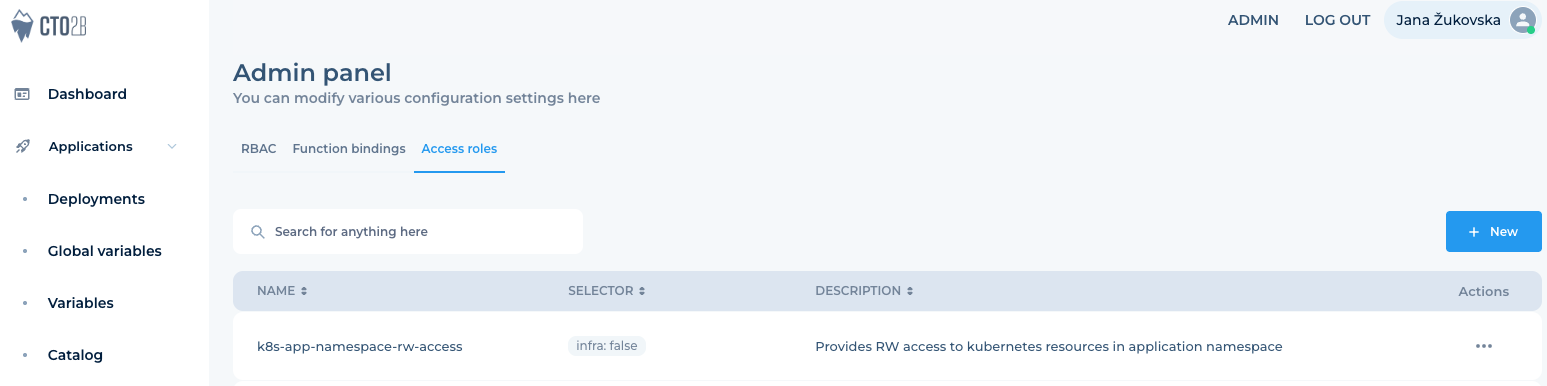
3. Press on "+ Add new" to add new Expiration (TTL value)
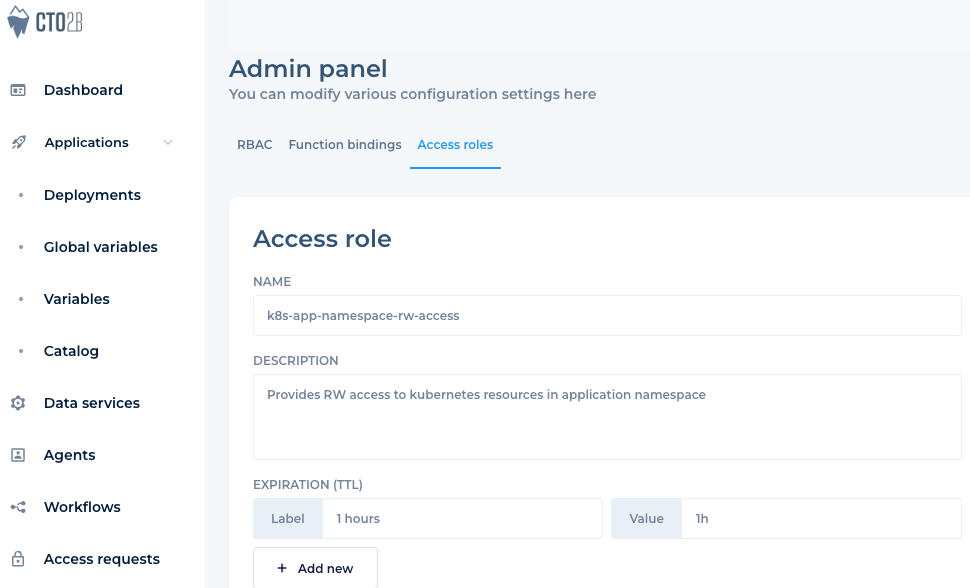
4. Enter Label and Value (e.g., 4h, 8h, 12h, etc.) details according to your policy.
5. Click on Save to apply changes. The new TTL options will now be available for users when requesting temporary access.
Tip:
Ensure TTL changes comply with your organisation’s security policy. Only admins can modify binding configurations.
¶ Support and Community
If you have any questions, encounter issues, or want to connect reach out to our support team at [email protected].